Techies Hangout Headline Animator

Techies Hangout

Featured Video

Paper Phone - Flexible Smartphone

A prototype flexible smartphone made of electronic paper has been created by Canadian researchers

Beautiful Wordpress Themes

Best and Beautiful Wordpress themes available, to enhance your blogging experience

5 Best Windows7 Applications that make your PC function Smarter

Nokia N-900

The Nokia N900 has evolved from Nokia's previous generation of Internet Tablets and broadens the choice for technology enthusiasts who appreciate the ability to multitask and browse the internet like they would on their desktop computer.

Ten Best Notebooks

Ten Best Notebooks Available in the Market

Tuesday, May 10, 2011

Installing Windows on your Mac - Boot Camp Tool

Top Blogs


Stylish MacBook Pro Laptops How to Install Windows on Your Mac using Boot Camp
Want to know how to install Windows Xp, Windows Vista or Windows 7 on your Mac OS X? Then you are in right place.In this article, I will teach you installing windows in Mac using Boot camp assistant with screenshots.You can also use Parallels Desktop to run Windows operating system on Mac virtually.

Step-by-step Tutorial to Install Windows Using Boot Camp

1. Goto Applications –> Utilities and open Boot Camp Assistant.
2. Click Continue on the initial Introduction screen.
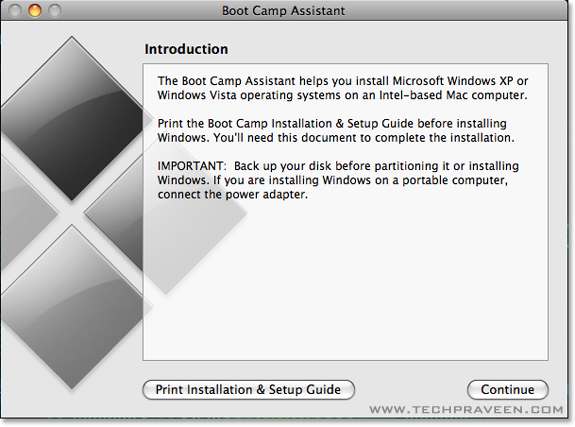
Boot Camp Assistant Dialog Box How to Install Windows on Your Mac using Boot Camp
3. Set windows partition size by dragging the divider.And click Partition button.
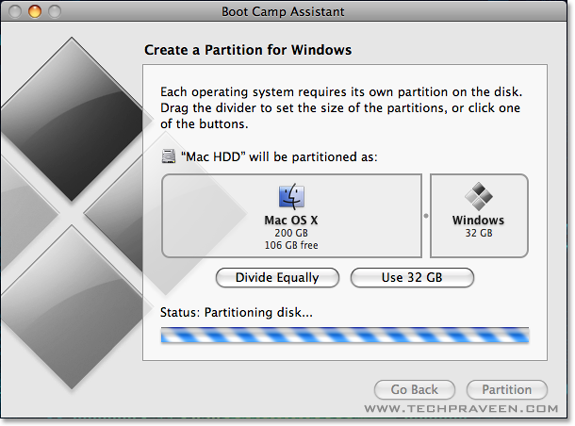
Set Windows Partition and Click Partition Button How to Install Windows on Your Mac using Boot Camp
4. Once completed you’ll notice a new BOOTCAMP drive on your desktop.
5. Now insert your Windows Xp or Vista or 7 DVD and click the Start Installation button.
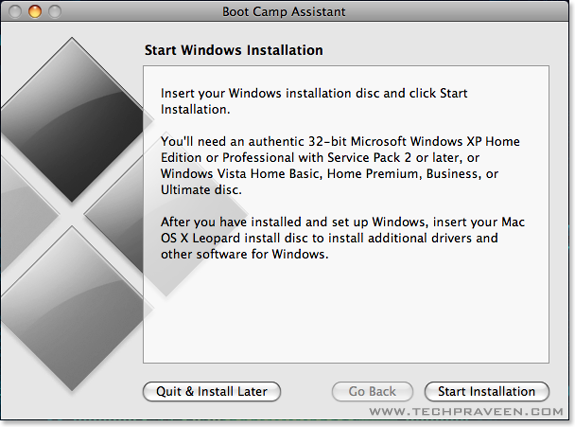
Start Windows Installation in Boot Camp How to Install Windows on Your Mac using Boot Camp

Note:
In this tutorial I have used Windows Xp.
6. Your Mac will restart, and Windows Xp will boot. You’ll be prompted with a window asking you whichpartition you want to install Windows on. Select the one with BOOTCAMP in the Name column. Selecting anything else may wipe out OS X or cause serious problems. Just format BOOTCAMP partition with NTFS.
7. As usual the normal windows xp insallation process will go. icon smile How to Install Windows on Your Mac using Boot Camp
8. Once the installation has completed and your Mac has restarted again, you’ll be able to use Windows Os.
9. Now insert your Mac OS X Tiger (or Snow Leopard) DVD. When prompted, select Run setup.exe.
Note:
If you’re using Snow Leopard and a message pops up saying “Remote Install Mac OS X”, close that window and eject the CD. Put the CD in again and this time select “Open folder to view files”, navigate to the Bootcamp folder, and run setup.exe.
10. The Boot Camp installer will launch. Click Next to begin.
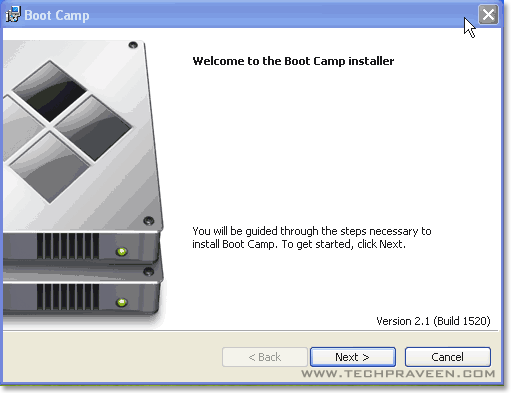
Boot Camp Drivers Installation Dialog Box How to Install Windows on Your Mac using Boot Camp
11. Select I accept the terms in the license agreement and then click Next.
12. Choose Apple Software Update for Windows, and click Install.
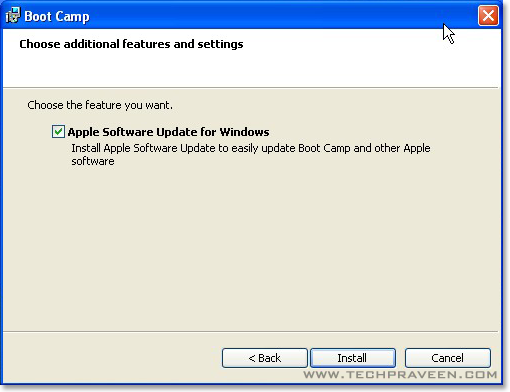
Apple Software Update for Windows How to Install Windows on Your Mac using Boot Camp
13. The Boot Camp installer will install all the required drivers.
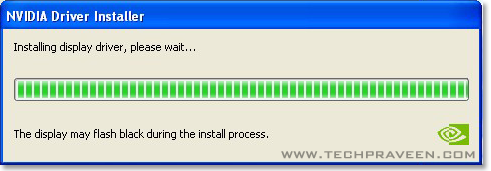
Nvida Graphics Card drivers for windows How to Install Windows on Your Mac using Boot Camp
14. Once completed click Finish.
15. Again you’ll be prompted to reboot. Remove your OS X DVD from the drive, and click Yes to restart.
16. That’s it, you’re done! icon smile How to Install Windows on Your Mac using Boot Camp
17. When your Mac boots, hold down the Option key to select which Operating System you want to boot into.
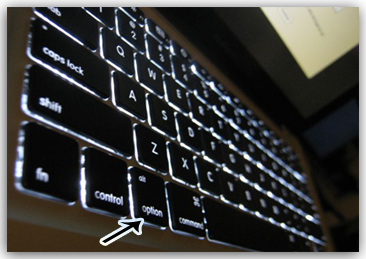
Apple Option Key How to Install Windows on Your Mac using Boot CampApple Boot Camp How to Install Windows on Your Mac using Boot Camp
Got any doubts? Post your queries below icon smile How to Install Windows on Your Mac using Boot Camp

Sunday, May 8, 2011

Microsoft Windows Shortcut Keys, Easy and Useful

Top Blogs


Microsoft Windows Shortcut Keys


Microsoft Windows Shortcut Keys

This is a listing of some common shortcut keys in different versions Microsoft Windows.
Some shortcut keys below are not supported in all versions of Windows.
The shortcut keys on this page are only applicable for Windows in general, if you are looking for shortcut keys for a specific application (i.e. Excel, Word, etc..) please see the links at the bottom of this page.
Use at your own risk.
Shortcut KeySupported Window VersionsShort Key Description
Alt + (double-click)95, 98, ME, NT, 2000, XP, VistaOpen Properties dialog of selected item.
Alt + Enter95, 98, ME, NT, 2000, XP, VistaOpens properties window of selected item.
Alt + Esc95, 98, ME, NT, 2000, XP, VistaSwitch Between open tasks available on the taskbar.
Alt + F495, 98, ME, NT, 2000, XP, VistaClose the top (focused) window.
Alt + Tab95, 98, ME, NT, 2000, XP, VistaSwitch between open windows.
Alt + Tab + Shift95, 98, ME, NT, 2000, XP, VistaSwitch between open windows, backward.
Ctrl + Alt + Delete (or Del)95, 98, ME, NT, 2000, XP, VistaBring up the Windows Task Manager, or reboot computer.
Ctrl + Esc95, 98, ME, NT, 2000, XP, VistaBring up the Windows Start menu.
Ctrl + '+' ('+' key on the keypad)98, ME, NT, 2000, XP, VistaAutofit the widths of all columns (if available) in current window.
Ctrl + F495, 98, ME, NT, 2000, XP, VistaClose sub window/tab.
Ctrl + Tab95, 98, ME, NT, 2000, XP, VistaSwitch between existing tabs (within a window).
Ctrl + Tab + Shift95, 98, ME, NT, 2000, XP, VistaSwitch between existing tabs (within a window), backward
F195, 98, ME, NT, 2000, XP, VistaOpen Help for Windows or focused application.
F295, 98, ME, NT, 2000, XP, VistaRename.
F395, 98, ME, NT, 2000, XP, VistaFind/Search.
F495, 98, ME, NT, 2000, XP, VistaSelect drives or display the list of drives
F595, 98, ME, NT, 2000, XP, VistaRefresh.
F695, 98, ME, NT, 2000, XP, VistaSwitch focus to the address bar (if exists).
F1095, 98, ME, NT, 2000, XP, VistaSwitch focus to the top menu bar.
Shift + F1095, 98, ME, NT, 2000, XP, VistaSame as mouse right-click on the select item.
Print Screen95, 98, ME, NT, 2000, XP, VistaCapture a screenshot of the entire desktop to clipboard.
Print Screen + Alt95, 98, ME, NT, 2000, XP, VistaCapture a screenshot of just the top(focused) window to clipboard.
Shift + Delete (or Del)95, 98, ME, NT, 2000, XP, VistaPermanently delete selected file(s)/folder(s) (bypass recycle bin)
Shift (hold while inserting an audio CD to drive)95, 98, ME, NT, 2000, XP, VistaPrevent autoplay.
* (keypad) on Windows Explorer.95, 98, ME, NT, 2000, XP, VistaExpand all sub-directories from the selected item.
+ (keypad) on Windows Explorer.95, 98, ME, NT, 2000, XP, VistaExpand only the first level of selected item.
- (keypad) on Windows Explorer.95, 98, ME, NT, 2000, XP, VistaCollapse
Most keyboards have a Windows Key (key with a Windows icon). This key provides additional shortcuts for Microsoft Windows. Below is a list of the shortcut keys by combining the Windows key and other keys.
Shortcut KeysDescription
WINDOWS-KEYBring up the Windows Start menu.
WINDOWS-KEY + F1Bring up the Windows Help.
WINDOWS-KEY + eOpen Microsoft Explorer.
WINDOWS-KEY + fWindows Search.
WINDOWS-KEY + Ctrl + fSearch for computers
WINDOWS-KEY + dMinimizes all and bring up desktop, or restore all
WINDOWS-KEY + lLock the computer (Windows XP & newer).
WINDOWS-KEY + mMinimizes all windows.
WINDOWS-KEY + Shift + MRestore all. Opposite with WINDOWS-KEY + M and WINDOWS-KEY + D.
WINDOWS-KEY + rOpen the run window.
WINDOWS-KEY + uUtility Manager.
WINDOWS-KEY + TabCycle through the programs on task bar.
WINDOWS-KEY + Pause/BreakOpen the System Properties window.

Saturday, May 7, 2011

Paper Phone - Flexiible Smartphone.

Top Blogs

Flexible phone made from electronic paper to debut

PaperPhone, Queen's University, Canada The PaperPhone is used by being bent or written upon.

Related Stories

A prototype flexible smartphone made of electronic paper has been created by Canadian researchers.

The PaperPhone can do all the things bulkier smartphones can do such as make and take calls, send messages, play music or display e-books.

The gadget triggers different functions and features when bent, folded and flexed at its corners or sides.

"Everything is going to look and feel like this within five years," said creator Dr Roel Vertegaal.

The device emerged from a collaboration between researchers at the Human Media Lab at Queen's University, Canada and Arizona State University's Motivational Environments Research group.

"This computer looks, feels and operates like a small sheet of interactive paper," said Dr Vertegaal in a statement. "You interact with it by bending it into a cell phone, flipping the corner to turn pages, or writing on it with a pen."

The millimetres thick prototype is built from the same e-ink technology found in Amazon's Kindle e-book reader and this is bonded to flex sensors and a touchscreen that interprets drawings and text written on it.

The prototype was created in order to investigate how easy it is for people to use bending and flexing to control such a device. The early version is connected to a laptop to interpret and record the ways test subjects flexed it.

Dr Vertegaal predicted that widespread use of larger versions of the PaperPhone might make the paperless office a reality.

The PaperPhone prototype will be on display on 10 May at the Computer Human Interaction conference in Vancouver.

At the same show the research team plan to show off a device they called the Snaplet. This device takes on different functions depending on how it is worn and bent.

The wristband is a watch when convex, a PDA when flat and a phone when concave.

Friday, May 6, 2011

PC shortcut Keys. Easy and Useful !!

Top Blogs


Basic PC Shortcut Keys


Basic Shortcut Keys

The followings are some basic PC shortcut keys that are supported in most IBM compatible computers. They are also supported in most application software.
Use at your own risk.
Shortcut KeysSupported Window VersionsDescription
Alt + e95, 98, ME, NT, 2000, XP, VistaPull down the top Edit menu.
Alt + f95, 98, ME, NT, 2000, XP, VistaPull down the top File menu
Ctrl + a95, 98, ME, NT, 2000, XP, VistaSelect all text.
Ctrl + c95, 98, ME, NT, 2000, XP, VistaCopy selected item(s) (to clipboard).
Ctrl + f95, 98, ME, NT, 2000, XP, VistaFind.
Ctrl + v95, 98, ME, NT, 2000, XP, VistaPaste copied item(s) from clipboard
Ctrl + x95, 98, ME, NT, 2000, XP, VistaCut.
Ctrl + Ins95, 98, ME, NT, 2000, XP, VistaSame as Ctrl + c
Ctrl + (left arrow)95, 98, ME, NT, 2000, XP, VistaMove one word to the left at a time.
Ctrl + (right arrow)95, 98, ME, NT, 2000, XP, VistaMove one word to the right at a time.
Shift + Ins95, 98, ME, NT, 2000, XP, VistaSame as Ctrl + v
Shift + Delelte (or Del)95, 98, ME, NT, 2000, XP, VistaCut. Or permanently delete selected item(s) on Windows Explorer.
F195, 98, ME, NT, 2000, XP, VistaHelp.
Home95, 98, ME, NT, 2000, XP, VistaJump to the beginning of the line or page.
Ctrl + Home95, 98, ME, NT, 2000, XP, VistaJump to the beginning of the document or page.
End95, 98, ME, NT, 2000, XP, VistaJump to the end of the line or page.
Ctrl + End95, 98, ME, NT, 2000, XP, Vistaump to the end of the document or page.
Shift + Home95, 98, ME, NT, 2000, XP, VistaSet selection (highlight) from current position to beginning of the line or page.
Shift + End95, 98, ME, NT, 2000, XP, VistaSet selection (highlight) from current position to end of the line or page.
Shift + (left arrow)95, 98, ME, NT, 2000, XP, VistaSet selection (highlight) from current position to the left, one character at a time.
Shift + (right arrow)95, 98, ME, NT, 2000, XP, VistaSet selection (highlight) from current position to the right, one character at a time.
Shift + (down arrow)95, 98, ME, NT, 2000, XP, VistaSet selection (highlight) from current position to the next line down.
Shift + (up arrow)95, 98, ME, NT, 2000, XP, VistaSet selection (highlight) from current position to the next line up.

Thursday, May 5, 2011

Wireless Hard Drives : Boost Your Computing Capacity

Top Blogs

It may be obvious enough for some people but for those who aren't up-to-date on every latest invention to hit the market, you may not be familiar with some of the new wireless hard drives that are slated to hit the market this year. People all over Canada and America are getting ready to see all of the ways this invention will revolutionize the IT industry. Where once a person would have to look forToronto self storage to keep all of their electronics and devices can now carry it all directly in the palm of our hand. We're becoming an increasingly mobile society and these wireless devices promise only to increase this trend.

At its most basic level, a wireless hard drive is a hard disc drive that allows users to connect to it from any device by using a wireless connection. This has become an increasingly popular option for areas of the market where people are forced to deal with limited storage space, like phones. With this invention, you'd be able to connect to a wireless hard drive much the same way a person would connect to their modem or router to get Internet access but this is where the similarities stop.

Seagate is a technology company that has created a portable hard drive that boasts an astounding 500GB of space. The Seagate GoFlex Satellite hasn't even hit the stores yet and won't be released until July later this year but that hasn't stopped the online world from reporting on its multiple applications. It will primarily be used for mobile/wireless devices for supplemental storage purposes but this device could be a huge game changer.

Mobile devices, like the Android and iPhone, can do amazing things that no one thought possible but its storage capacity has been somewhat limited. Though incremental improvements have been made in current cell phones, these new wireless devices could essentially make your mobile device a walking computer in the palm of your hand. This system offers the ability for users to stream video up to five hours, expanded battery life, and the option to serve up to three devices simultaneously.

Many devices similar to this are likely to hit the market in coming years and produce huge leaps forward in the mobile computing community. The possibly exists that, in the near future, people will be able to carry every piece of information about themselves while staying connected and all from a hand held device. With this additional storage option, it will be interesting to see what further innovations in application and software development will occur as a direct result from unencumbered computing power.

Share

Twitter Delicious Facebook Digg Stumbleupon Favorites More